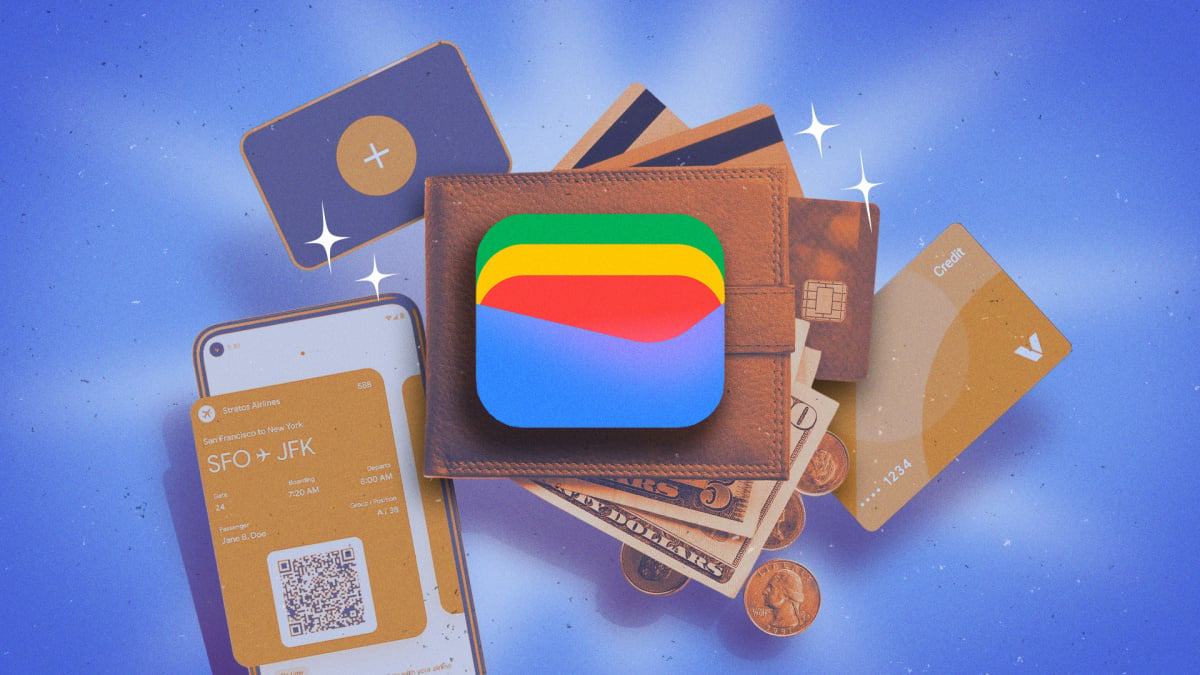
For Android users, Google Wallet is an obvious way to carry digital payment cards and passes for everything from tap-to-pay to boarding flights. But there’s a lot more to the app than storing cards and making transactions. Here are the hacks you need to know to get the most out of Google Wallet.
Enable Location Permissions So Google Wallet Can Automatically Pull Up the Card or Pass You Need
If you have loyalty cards, gym passes, or other location-specific items saved in your Google Wallet, you can set up permissions that allow the app to suggest them to you as soon as you’re in proximity. This time-saving shortcut means you don’t have to go searching for the relevant card or pass when it’s needed. You’ll need to ensure Google Wallet has access to your device location via Settings > Apps > Google Wallet > Permissions. Then select the card in Google Wallet, tap the three-dot menu, and toggle on Get notifications for this card.
Digitize Passes That Don’t Automatically Integrate With Google Wallet
If your pass or ticket is already digital, you can simply tap “Add to Google Wallet” to store it. But for those that aren’t — library cards, gym passes, parking passes, etc. — Google can digitize them for you as long as there’s a barcode or QR code on the card. All you have to do is take a photo of the pass with your Android device, then tap Add to Google Wallet > Photo, select the image of your pass, add a name and description, and hit Add. From there, you can use the digital version the same way as the hard copy.
Turn on Gmail Integration to Automatically Import Passes From Your Email
If you buy a plane or concert ticket and receive an email confirmation to your Gmail account, Google Wallet can automatically pull those passes in and organize them so you don’t have to search for them later or add them manually. Smart features must be enabled for Gmail for this to work. In Google Wallet, tap your profile icon, go to Settings > Add passes from Gmail, and select your email account. On the next screen, ensure Smart features is checked.
Link Google Wallet and Google Maps to Integrate Your Transit Pass Information Into Route Planning
Google Wallet also plays nice with Google Maps: if you have a transit card saved in your Wallet, Maps will recognize your pass and show you which legs of your trip are covered. For certain transit systems, it’ll check your balance against route fare and prompt you to reload if needed. You’ll need to enable pass sharing permissions in Google Wallet by tapping your profile photo > Your data in Wallet > Manage pass data. Toggle on Use passes across Google. You’ll also need to ensure NFC is enabled in your device settings and that Google Wallet is the default contactless payment option.
Set Up Supervised Wallets to Manage Your Kids’ Payment Cards and Pass Use
Google Family Link allows parents to set up supervised Google Wallets for their kids, which gives them access to tap-to-pay on their own Android device wherever Google Pay or contactless payments are accepted. This allows them to pay for certain purchases without you present or without having to carry a physical card. Note that kids must be the cardholder or authorized users on any card added to their Google Wallet. Supervised wallets also support loyalty passes, gift cards, boarding passes, and event tickets (but not keys, IDs, transit cards, or health records), as well as “secure balances”, which are similar to a digital allowance.
Add Your Passport to Google Wallet for Expedited Security Screening
A recent update to Google Wallet introduced Touchless ID access for travelers enrolled in TSA PreCheck. If you add your passport to Google Wallet and go through the verification process, you’ll be able to access expedited TSA security screening at a long list of airports and across dozens of airlines. Previously, Touchless ID was only available to travelers flying on a handful of airlines who opted in via that airline-specific profile. Tap Add to Google Wallet > ID > ID Pass > Continue and follow the prompts.
Share Passes Directly to Another User’s Google Wallet
If you buy airline, concert, or event tickets for multiple travelers or attendees on a single transaction, you can share a scannable version of the pass directly to another user’s Google Wallet, allowing them to gain entry even if you’re not together — no need to forward confirmation emails or screenshots of barcodes.